Getting Started with SENTINEL
Learn the basics of the SENTINEL platform in 10 minutes. This guide will walk you through setting up your workspace, understanding the interface, and running your first analysis.
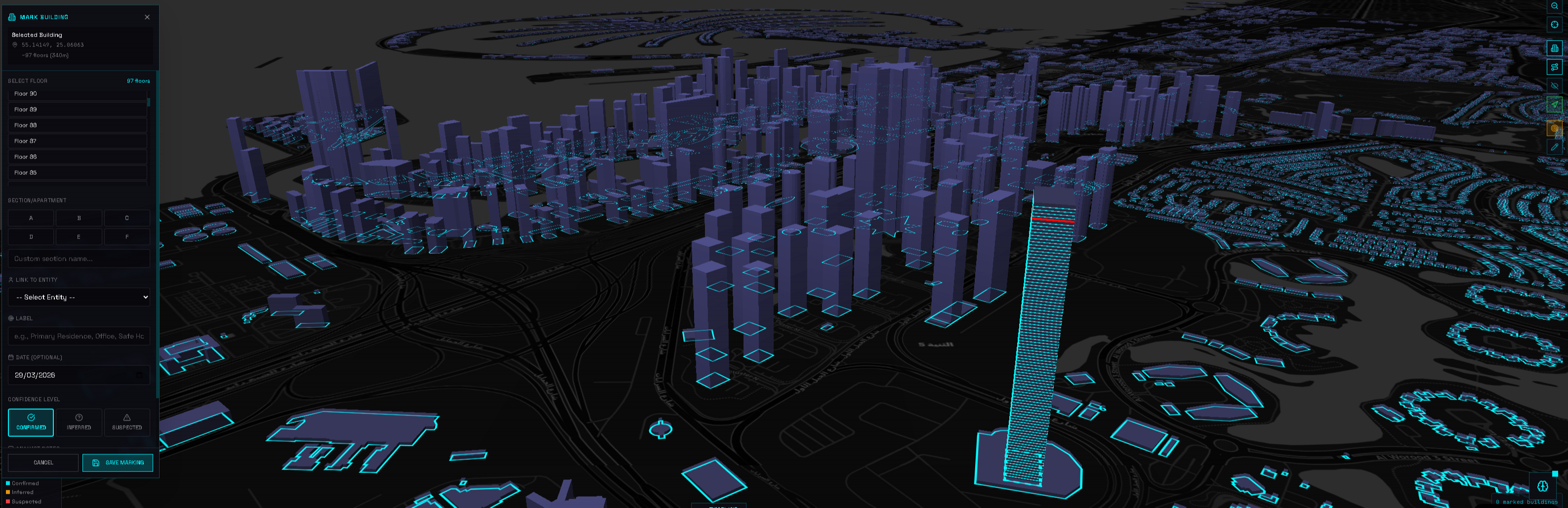
1. Accessing the Platform
After signing in with Google OAuth, you'll land on the main dashboard. The interface is divided into several key areas:
• **Top Navigation Bar** — Access your credits balance, notifications, and account settings • **Left Sidebar** — Switch between the 6 main modules: Map Data, Satellite, Research, Data Exposure, Incidents, and Reports • **Main Workspace** — The primary area where you'll conduct your analysis • **Quick Actions** — Contextual tools that change based on the active module
2. Understanding Credits
SENTINEL operates on a credit system. Each AI-powered action consumes credits:
• **Simple searches** — 1-2 credits • **Entity extraction** — 3-5 credits • **Full analysis** — 10-15 credits • **Report generation** — 15-25 credits
Your monthly allocation resets on the 1st of each month. Top-up credits never expire and are used only after your monthly credits run out.
3. Your First Analysis
Let's run a quick analysis to get familiar with the platform:
1. Click on **Research Workspace** in the sidebar 2. Enter a name, organization, or topic in the search bar 3. Select the sources you want to search (default: all 40+ sources) 4. Click **Search** and wait for results
The AI will automatically extract entities, identify relationships, and present the information in an interactive graph.
4. Saving Your Work
Everything you create in SENTINEL is automatically saved to your workspace:
• **Investigations** — Save research projects with all entities and connections • **Satellite Comparisons** — Export before/after comparisons as GIFs • **Reports** — Generate and download in PDF, Word, or PowerPoint • **Bookmarks** — Save important locations on the map for quick access
5. Next Steps
Now that you understand the basics, explore these features:
• **Map Data** — Visualize 64,000+ infrastructure points worldwide • **Satellite Analysis** — Compare imagery from 150+ strategic locations • **Incident Tracker** — Monitor 400+ live incidents across 16 categories • **Automated Reports** — Generate professional briefings in 7 languages
Continue learning